



Talking about the digital media players, which one is the best? Many users will choose Apple TV as the answer. Apple TV offers a convenient and feature-rich way to stream online digital content on your TV. As a small entertainment device, Apple TV is designed to be used with HDTV and allows you to access multiple popular streaming services, like Hulu, Disney+, Amazon Prime Video, Spotify, Apple Music, and so on. Of course, Netflix can be accessed on it as well due to its popularity and user base. Enjoying a vast catalog of shows and movies on your Apple TV is the best experience. If you have no clue about how to play Netflix on Apple TV, this post will show you the best and most comprehensive tutorial, which teaches you how to watch any content you like on your Apple TV online or offline in detail. Now, let’s concentrate on finding the most suitable way for you.
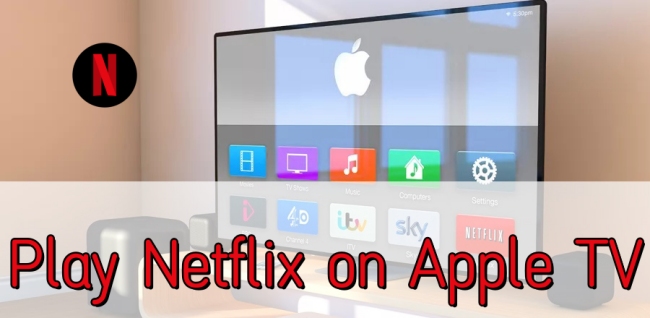
Part 1. How to Install Netflix on Apple TV (4th Generation)
In order to satisfy users’ diverse demands to the greatest extent, Netflix has established cooperation with a lot of devices, and Apple TV is one of them. If you are using the Apple TV 4th generation, you can find the Netflix app in the menu or the App Store on your device.
Requirements
Apple TV (4th generation or later) running tvOS
A high-speed Wi-Fi connection
An active Netflix subscription
The latest Netflix app on your Apple TV
A valid Apple ID signed in on your device
Key features
With the Netflix app in your Apple TV, you can access:
• 4K Ultra HD/HDR video streaming
• Dolby Atmos audio support
• Siri integration
• Interactive audio and subtitles options
• Multiple profiles
• The continue watching bar and watch history list
Step 1. Install the Netflix App
1. Go to the home screen of your Apple TV, and then select App Store.
2. Type “Netflix” into the search bar to find the app.
3. When you find it, select it and tap Get to install it on your Apple TV.
4. Next, go back to the home screen and you can find the Netflix app. Open it.
5. Select Sign In to log in to your Netflix account with your email and password.
6. After that, your Apple TV will be connected to your account. Feel free to stream shows and movies from the Netflix library to your device.
Step 2. Sign in to Netflix
1. In the interface of the Netflix app, select the Sign In option.
2. Then, a QR code will appear on your TV screen. You should open the Camera app on your iPhone or Android and scan the code.
3. When the link prompts up, tap it. This will open the Netflix app on your phone.
4. Confirm the sign-in on your phone, and your Apple TV will automatically log in.
5. You can also log in to your Netflix account by entering your email and password on the Apple TV screen.
If you don’t have an account yet, you can follow the on-screen prompts to register and subscribe to a plan that fits your needs. Once you’ve successfully logged in, you can browse all the Netflix content you like.
How to sign out from Netflix on Apple TV
If you need to switch accounts or troubleshoot a persistent error, you can try the following steps to sign out.
1. Open the Netflix app on your Apple TV and head to the left sidebar menu.
2. Scroll down to the bottom and select Get Help.
3. Select Sign Out and confirm by selecting Yes.
Part 2. How to Watch Netflix on Apple TV (Any Model)
For those who are using an older model of Apple TV, the official Netflix is not available. But don’t worry. We’ve got an alternative method that allows you to watch Netflix content on any generation. That is to download Netflix videos to local files first, and then you can play the downloaded videos on your Apple TV via the Home Sharing feature. Tunelf Netflix Video Downloader provides a one-stop answer to your difficulty.
Tunelf Netflix Video Downloader is the best choice for you to watch Netflix content offline on your Apple TV and other devices. Thanks to the advanced technology of the Tunelf program, you can utilize it to crack the DRM protection of Netflix videos and download them as normal MP4 or MKV files. As a result, you have the ability to save the downloaded videos forever. If you want, you can transfer them to any device for offline watching, as long as the device supports MP4 or MKV format.
More than that, the Tunelf program smartly keeps the original high resolution and 5.1 surround sound of Netflix shows and movies, ensuring video quality and your viewing experience. You can even personalize the video settings on this program if you want. By changing output settings like video format, codec, audio channel, language, and subtitle type, you will get a unique video that suits your demands best. It’s time to follow the steps below and start enjoying Netflix on your Apple TV.
Key Features of Tunelf Netflix Video Downloader
- Download TV shows, movies, anime, and various content on Netflix
- Convert Netflix to MP4 and MKV while keeping the original quality
- Support exporting Netflix content to videos, audio, and subtitles
- Allow to choose multilingual subtitles and soundtrack for Netflix
- Offer an abundant of features like automatic task completion
Step 1 Log in to your Netflix account on the Tunelf program
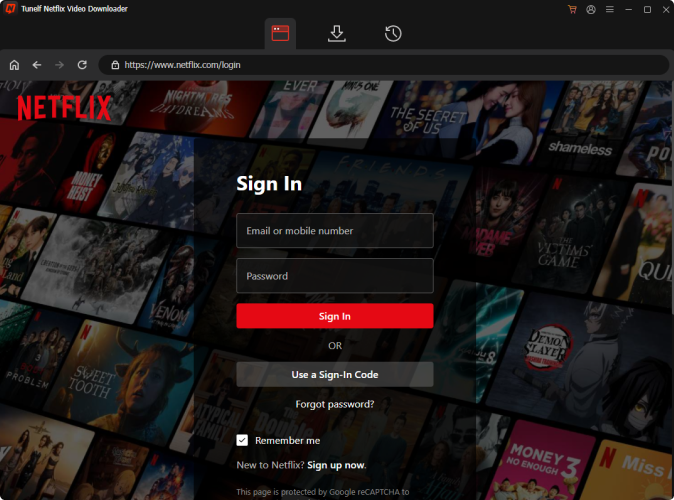
You can click the download button above to install the Tunelf Netflix Video Downloader on your desktop. But you should notice that there are Windows version and Mac version. Please download the right one that matches your computer system. Then, you can open this app and log in to your Netflix account in the interface.
Step 2 Adjust the video settings
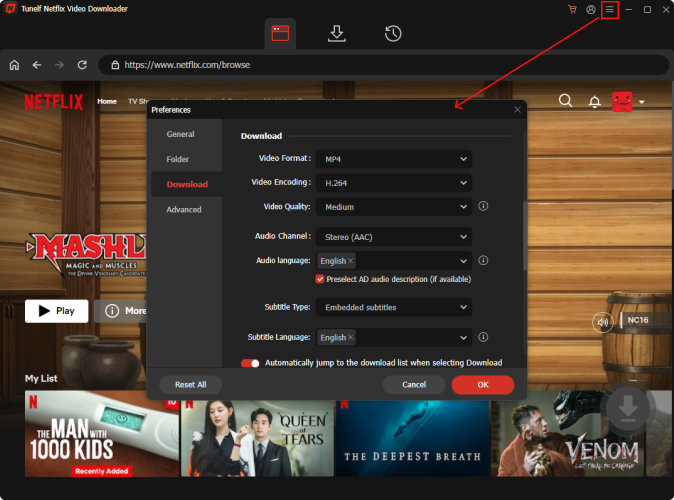
The menu icon is located in the upper right corner. You should click and choose Settings. Here you need to adjust the video settings according to your needs. The most important one is to decide the video format. You can also change other parameters about the video or audio, even its downloading path on your computer. Lastly, click OK to make a confirmation.
Step 3 Browse Netflix library and find videos to download
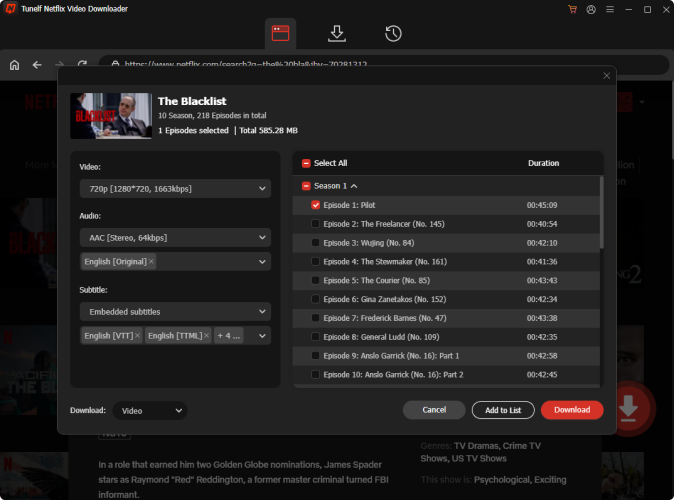
Now you can browse the whole Netflix library and find the videos you want to watch on Apple TV. Or, try to search videos by typing keywords at the top search bar. Click the video you like, then the Tunelf program will analyze it. You will see a new pop-up window, and you can set the video quality and other settings here. If you choose TV shows, you will need to choose the episode to download. When you have a special need to download the audio or subtitle only, you just need to change the downloading content by hitting the panel at the left bottom.
Step 4 Initiate the downloading process
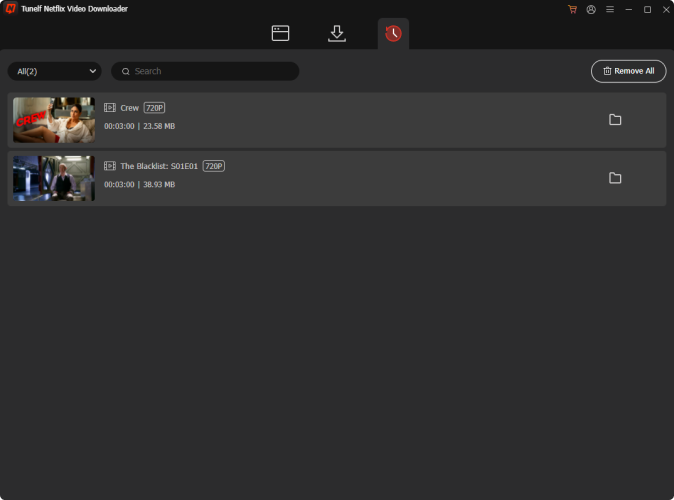
Everything will be done as long as you click the Download button. When the downloading process is finished, you can go to the Downloaded tab to find all the downloads. If you want to find their location on your computer, just click the file icon next to each video. Tunelf program also supports you to download Netflix videos in batches. To do so, you should choose Add to List first. After you add all the videos you like, you can go to the Downloading section and download them at once.
Step 5 Watch Netflix downloads on Apple TV via Home Sharing
To stream downloaded Netflix videos on your Apple TV, you can use the Home Sharing feature to stream videos from your computer or iOS device.
Just make sure that you signed in with the same Apple ID on both your Apple TV and your device and turned on the Home Sharing feature. Then, follow the steps below:
1. Go to the Apple Menu > System Settings on your Mac.
2. Then, click General in the sidebar > Sharing.
3. Turn on Media Sharing. Then, click the info button next to it.
4. After that, click Home Sharing. You should enter your Apple ID password when prompted and confirm to enable Turn on Home Sharing.
5. Once Home Sharing is set up correctly, you can go to the Computer app on your Apple TV, select your computer from the shared list.
6. Locate the folder that stores your downloaded Netflix videos, then select the video you want to play and start enjoying your Netflix content directly on your older Apple TV.
Part 3. Troubleshoot: Netflix on Apple TV Issues
Normally, streaming Netflix videos on your Apple TV via its official app is smooth. However, you may occasionally run into problems, such as not finding the Netflix app on your TV, seeing the app grayed out, or dealing with playback issues. No worry. These issues are common and easy to fix. Here are some troubleshooting methods you can try.
Issue 1. Can’t Find the Netflix App on Apple TV
If you can’t locate Netflix in the App Store or on your home screen, it’s usually due to compatibility or regional issues. To fix this issue, you can try:
1. Check your Apple TV model. Only Apple TV (4th generation or later) supports downloading apps
2. Restart your Apple TV. Go to Settings > System > Restart. Or, you can unplug your device for 10 seconds.
3. Check your Apple ID and search again. Make sure you’re signed in with a valid Apple ID. Then, search for the Netflix app again via different methods, like voice search.
4. Check region settings. Open your Apple TV and go to Settings > General > Region, ensuring your region supports Netflix.
Issue 2. The Netflix App is Grayed Out
A grayed-out app icon usually means the app is stuck in an update loop or there is a problem with your Apple ID or the Netflix app itself.
1. Check Netflix status. You should check the status of the Netflix app. If Netflix is down, it won’t work on any device, including Apple TV.
2. Check your Internet connection. Netflix requires a stable network connection to perform. Thus, you’d better check the WiFi you’re connected to. If the network is too slow, you can consider changing it.
3. Update the Apple TV software. The latest version of the Apple TV system can ensure your access to the Netflix app. You should open Apple TV and go to Settings > System > Software Updates > Update Software. If there is a new version, you can choose Download and Install to update the system.
Issue 3. Netflix Not Working on Apple TV
This is one of the most common issues. When you find that Netflix opens but doesn’t play content or crashes frequently, try these fixes.
1. Restart Netflix app. Double-click the TV button on your remote control. Then, force close Netflix. Wait for at least 30 seconds, and you can reopen it to see if it works well.
2. Reinstall the Netflix app. Another solution is to delete the Netflix app and reinstall it. Just go to Settings on your Apple TV. Then, choose General > Manage > Storage > Netflix > Delete. After that, you can follow the steps in Part 1 to install it again.
3. Sign out and sign back in. Open Netflix, and then select Get Help > Sign Out. Wait for your account data to refresh. Then, you can log in again.
Part 4. Conclusion
A big screen can bring you a better Netflix viewing experience. Apple TV can be a good choice. This post will teach you how to watch Netflix on Apple TV in 2 methods. You can stream Netflix content online via its app on Apple TV. If you want to watch Netflix videos offline, you can not miss the best tool – Tunelf Netflix Video Downloader. It can help you download Netflix shows and movies without limitations. After downloading, you will get full control over Netflix videos and watch them on different devices as you want.
Get the product now:
Get the product now:


