



As a fan of streaming material, which platform would you pick to unwind and be entertained? Most of you will probably say Netflix. Netflix is one of the most popular streaming services around the world. There is no doubt that you can discover something you like in its extensive selection of TV shows and movies. Beyond that, Netflix provides subtitles in multiple languages to ensure your flawless viewing experience. One big problem that bothers many Netflix users is how to download Netflix subtitles. If you are also looking for practical methods to extract those lines of text, you are in the right place. In this guide, we will explore three effective methods for downloading subtitles from Netflix to SRT files. Whether you prefer a quick technical way, an easy browser tool, or a dedicated and stable solution, you will find the right approach. Let’s dive in.
Part 1. Can I Download Subtitles from Netflix?
Yes, but not directly. It isn’t as simple as clicking a download button within the Netflix interface, just like you download a movie or TV episode. The Netflix platform bundled subtitles with the video stream. If you want to get a usable SRT file, you have to use an extraction method. Depending on your technical comfort level and your specific needs, there are three different ways for you to choose from:
• Standalone Netflix Subtitle Downloader: This is the most stable and reliable method. With the help of a professional downloader like Tunelf Netflix Video Downloader, you can easily handle the Netflix decryption and save your desired subtitles to SRT files. The dedicated tool also provides additional features, including downloading your favorite videos locally and saving your favorite Netflix content as audio.
Best for: Reliable long-term use
• Browser’s Built-in Developer Tool: For downloading subtitles from a single episode, this is the quickest way. It doesn’t require extra software. But since it digs into the network traffic of your browser to find the subtitle source file, you will need to have some basic tech knowledge.
Best for: Tech-savvy users
• Subtitle Download Browser Extensions: This is easiest method. Tools like Subtitle Downloader and Netflix Bilingual Subtitles allow you to download the subtitle file of a Netflix video while you are watching it. But these tools can sometimes unstable and fail to extract subtitles.
Best for: Quick downloads
Why you might need Netflix subtitles in SRT?
An SRT (SubRip Subtitle) file is a plain text file. It contains not only the text itself but also sequence numbers and timestamps. Plus, it is editable and compatible with most media players. Whether you want to study dialogue and vocabulary or translate for video captioning, downloading Netflix subtitles in SRT format is the best approach, ensuring you watch Netflix content on your own terms without being restricted to the official app’s limitations.
Part 2. How to Download Netflix Subtitles via Netflix Subtitles Downloader (Free & Professional)
With regard to downloading Netflix content, a professional tool like Tunelf Netflix Video Downloader is definitely a reliable and hassle-free solution, offering a seamless experience.
Tunelf Netflix Video Downloader is a full-featured and professional Netflix downloader designed for all Netflix users. You can use it to download TV shows, movies, audio tracks, and subtitles from Netflix to your own computer locally. The feature of downloading subtitles only is free. With its help, you can download any Netflix content you like as a local file so that you can get full control of it.
For subtitles, you can download them separately as SRT files and use them on your computer freely. The Tunelf software also provides all the original subtitles in various languages for you to choose from. You can also set the subtitle type as you wish, such as embedded subtitles or independent subtitles. If you want to download Netflix movies or TV shows as local MP4 or MKV files in HD quality, the Tunelf tool can also give you a hand. Dive into the following content to see how to get the subtitles you want from Netflix.
Key Features of Tunelf Netflix Video Downloader
- Download TV shows, movies, anime, and various content on Netflix
- Convert Netflix to MP4 and MKV while keeping the original quality
- Support exporting Netflix content to videos, audio, and subtitles
- Allow to choose multilingual subtitles and soundtrack for Netflix
- Offer an abundant of features like automatic task completion
Pros
- Download Netflix video/audio/subtitle
- Export subtitles as original format files
- Support SRT format
- Allow you to customize subtitle types
- Provide multilingual subtitles
- User-friendly UI design
- Easy to use
Cons
- Limited features for the Free version
Step 1 Install Tunelf Netflix Video Downloader
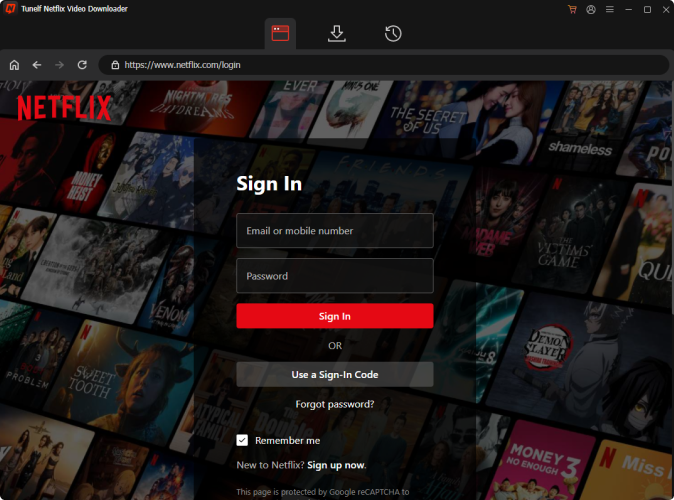
To meet users’ different demands, the Tunelf Netflix Video Downloader prepared 2 different versions for Windows and Mac users respectively. You need to install the one that is compatible with your operating system. Once installed, you can launch the Tunelf software on your desktop. In its interface, you can see the official Netflix website, and here you need to sign in to your Netflix account by clicking Sign In.
Step 2 Customize output settings
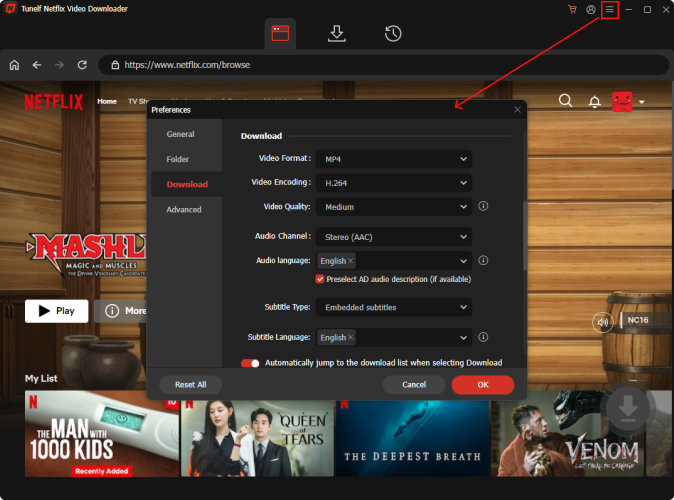
Hover over the top right corner of Tunelf’s interface and click the menu icon. Then, choose Preferences from the dropdown list. In the new window, you need to set the output settings as you like. You can decide on the languages and type of subtitles you need. When you finish, remember to click the OK button to save your changes.
Step 3 Find the subtitles you want to download
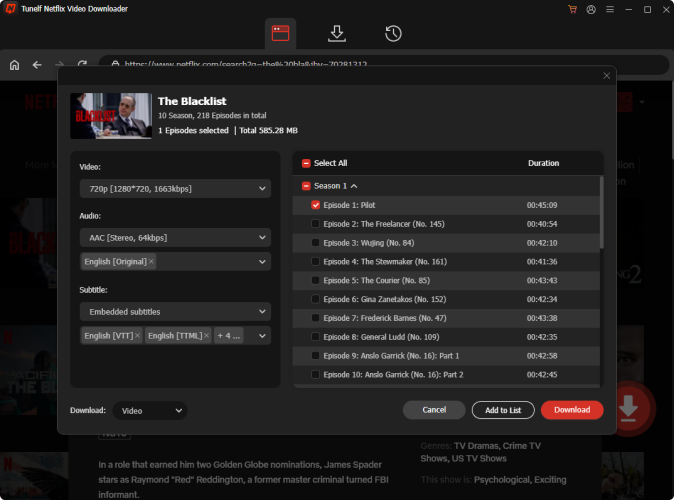
The next step is to find the TV show or movies that you want to download their subtitles. There are 2 ways to find them. You can either browse the Netflix library in genres and languages or utilize the top search box. Once found, simply select it and click the red download icon in the lower right. There will pop up a new window. Here, click the Download panel at the left bottom and choose Subtitles.
Step 4 Download Netflix subtitles to SRT
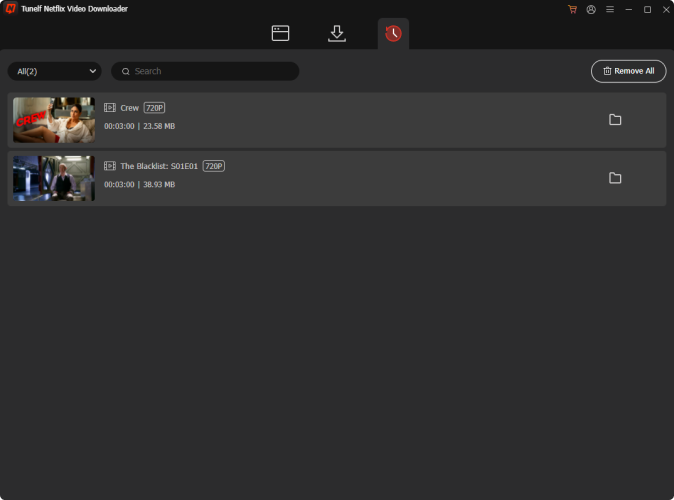
Whenever you are ready, click the Download button and you are done. Now, just wait patiently until the Tunelf software helps you download the subtitles to SRT files and save them on your local computer. All the downloads can be found on the History tab.
Part 3. How to Download Subtitles from Netflix via Developer Tool (No Software Required)
If you prefer a free method without installing software, or you only need a subtitle file for a single episode, you can use the built-in developer tools in browsers, like Chrome, Edge, or Firefox. This method works by capturing subtitle files directly from Netflix’s streaming data. It requires no third-party tool download, but it involves a few technical steps. Plus, you may need to convert the subtitle file to SRT after extraction. In this part, we will take Chrome as an example.
Pros
- No installation required
- Totally free
Cons
- Not easy for beginners
- Cannot download some types of subtitles
Before using the tool, you need to get the Netflix subtitles XML files first. Also, make sure you already have Python downloaded on your desktop.
1. Sign in to your Netflix account on Google Chrome.
2. Play the video with the subtitles you want to download.
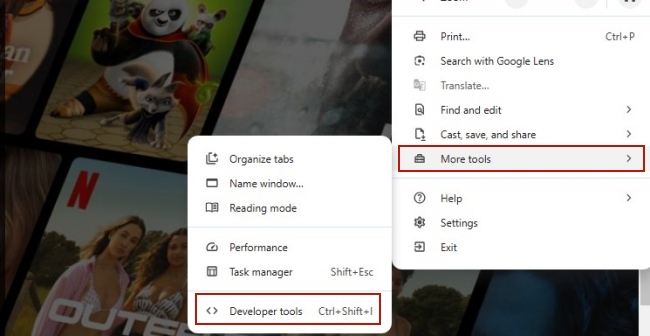
3. Pause the video and open Developer Tools by clicking the three-dot icon at the top right > More tools > Developer Tools.
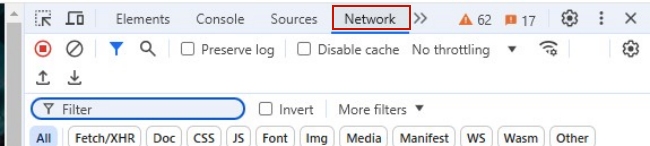
4. Next, switch to the Network tab. Turn off Subtitles on Netflix and reload the current page.
5. Pause the video again and select the subtitles you want to download.
6. After that, type ?o= in the filter box in the upper right corner. Select the file named with ?o= and right-click it. Then, choose Open in new tab.

7. Now the raw Netflix subtitle file will be saved on your device. But it is usually in WebVTT or XML format. If you want use the subtitle as an SRT, you will need to use a free online VTT to SRT converter.
Part 4. How to Get Netflix Subtitles Download via Browser Extensions (Easy)
For users who find the developer tool method too techy, browser extensions offer a much more user-friendly operation. There are some helpful extensions available, allowing you to access and download subtitle files while watching Netflix on your browser. Most extensions provide flexibility in choosing subtitle languages. It is a good choice if you don’t want to install extra apps.
Pros
- Easy to use
- Free of charge
- Don’t need to download extra apps
Cons
- Unstable and buggy
- Fails to detect subtitles sometimes
- Support limited file formats
- Some only download an XML container instead of the SRT subtitle files
1. Open the Chrome browser on your computer and head to the Chrome web store.
2. Enter keywords like “download subtitle” into the top box and search for it.
3. Then, find the extension that meets your needs in the search results.
4. Enter its detailed page and click Add to Chrome to download it.

5. Next, visit the Netflix web player and play the video you like.
6. Click the Extensions icon at the top right. Then, find the downloader extension and enable it.
7. Follow the on-screen instructions to download Netflix subtitles via the extension.
Part 5. FAQs about Downloading Netflix Subtitles
Is it legal to download Netflix subtitles?
Yes, downloading Netflix subtitles for personal use only is generally acceptable. However, if you redistribute or use subtitles for commercial purposes, you will violate copyright laws and Netflix’s terms of service.
Why are my downloaded Netflix subtitles out of sync?
This usually happens when using manual extraction methods. Since Netflix uses a variable frame rate for some of its videos, your subtitles will drift when the file is set to static 24fps. Using a professional tool like Tunelf Netflix Video Downloader solves this, as it syncs the timestamp of the SRT directly to the downloaded video’s internal clock.
Do downloaded Netflix movies have subtitles?
If you use the official Netflix download feature with your subscription, subtitles are included in the videos you saved. But you should notice that these subtitles are only usable inside the app. You cannot move them to another player or edit them. To get separate subtitle files, you must use a dedicated third-party tool like Tunelf Netflix Video Downloader.
How to get English subtitles on Netflix?
To enable English subtitles on Netflix, just click the Audio & Subtitles icon on your now-playing screen, and then select English. If English isn’t listed, it may be because that specific title doesn’t have English rights in your region.
Part 6. Conclusion
Although Netflix does not offer a direct way to download Netflix subtitles, several effective methods allow you to access them. Your choice includes Chrome extensions and the developer tool. But still, the best choice is the Tunelf Netflix Video Downloader. Thanks to its advanced technology, you can have everything you need to enjoy your favorite Netflix content with subtitles on your own terms.
Get the product now:
Get the product now:


