



As one of the most popular wearable devices on the market, Apple Watch has received widespread acclaim and love. What appeals to users are not only its fitness track and health monitoring features but also its entertainment features. Apple Watch allows you to control music, podcasts, and other media content on its screen directly. You can access streaming services like Tidal, Spotify, Amazon Music, and more with ease. Thus, some users want to know if it is possible to play Netflix on Apple Watch as well. If you are also a user who wants to access Netflix videos from your wrist, you’ve come to the right place. This post is a complete tutorial that will clearly guide you step by step to watch Netflix on your Apple Watch via 3 feasible methods. Without further ado, let’s get into it!
Part 1. Can You Watch Netflix on Apple Watch?
The answer is yes, but not directly. There is no dedicated watchOS version of the Netflix app yet. Thus, you cannot watch Netflix on your Apple Watch directly. You will need to utilize some workarounds. The methods we’re going to introduce next are all tested and feasible. You can pick the one that fits your situation best.
| Use the hidden browser | Access the official Netflix web player on the hidden browser on Apple Watch | Read More |
| Use the mirroring feature | Utilize the screen mirror feature to cast Netflix videos to your Apple Watch | Read More |
| Download Netflix videos to cast via Chromecast | Save Netflix videos as local files, and then watch them on Apple Watch via YouTube or mirroring | Read More |
Part 2. How to Watch Netflix on Apple Watch via Hidden Web Player
Although there is no official Netflix app on Apple Watch, the Netflix web player is also an effective way to watch your favorite TV shows and movies. Thus, when the Netflix app can not be found on your watch, you can try to utilize the built-in hidden browser on your watch to visit the Netflix web player.
Option 1. Access the Hidden Browser via Siri
You have to use voice commands to let Siri assistant help you access the browser. You can wake Siri and then say “Siri, go to netflix.com”. Then, a list of web search results will appear. You can tap the Open Page option under the link to access the website you want to open.
Option 2. Open Netflix Web Player via Message
You can not launch Apple Watch’s built-in browser from the standard grid or apps. You must enable it by tapping a link from another app on your smartwatch. Thus, you can try to use the Mail or Message app. Just send yourself an email or message that contains the Netflix website address. Then, you can open it and tap the URL link to access the Netflix website.
If you think opening the built-in browser is too complicated, you can also choose some third-party browsers. Just go to the App Store and search for some web browser apps, like Squint Browser and WatchWeb. Install the app on your watch and you can use it to visit the Netflix website without hassle.
Part 3. How to Get Netflix on Apple Watch by Mirroring
Another workable method to watch Netflix videos on your Apple Watch is to mirror the content from your iPhone. This method lets you directly cast whatever is playing on your paired iPhone to your Apple Watch screen, so you can view any Netflix video on the small watch display.
Before you start, make sure your Apple Watch and iPhone are connected properly, and you have the Netflix app installed on your iPhone already. Then, you can try the following steps:
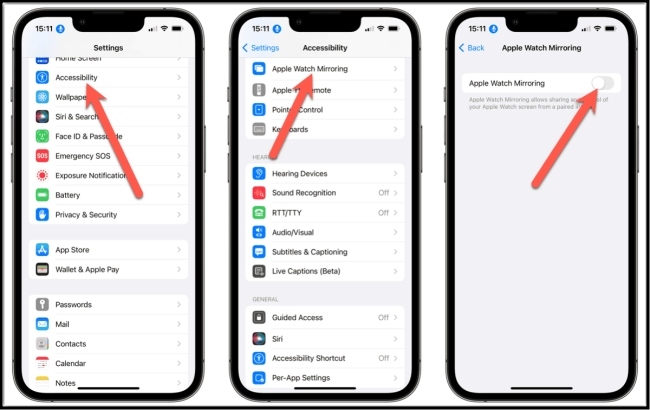
Step 1. Go to Settings app on your phone, and then select Accessibility, and then toggle on Apple Watch Mirroring.
Step 2. Go to the Netflix app installed on your mobile phone and find the video you want to view on your Apple Watch.
Step 3. Play the video. Then, open the Control Center on your iPhone by swiping down from the top-right corner of the screen.
Step 4. Then find the Screen Mirroring option and tap it to turn on the feature.
Step 5. Wait a few seconds for your phone to detect nearby available devices, then select your Apple Watch from the device list.
Once the mirroring connection is set up, go back to the Netflix app on your phone and continue playing. The video will be synced to your Apple Watch screen immediately, and you can control playback directly from the watch if you need.
Part 4. How to View Netflix on Apple Watch Offline (Best Experience)
When you want to watch Netflix content on your Apple Watch, you can try the above 2 methods. But sometimes they may not work properly. Thus, here we’d like to recommend a better method for you. That is to download your favorite Netflix shows and movies locally and then upload them to your watch for watching. It is known that Netflix applied a time restriction on the downloaded videos. After a period of time, the downloaded videos will expire. Once your subscription ends, you can not watch them anymore. But this method can help you get rid of this limitation. All you need is the powerful tool – Tunelf Netflix Video Downloader.
Tunelf Netflix Video Downloader is a full-featured and professional downloader. It can help you remove the DRM protection and download Netflix videos as local files. In other words, after using this tool to download Netflix videos, you can save them on your device forever without worrying they will expire. What’s more, you can transfer the local files to other apps or devices for offline watching. To enhance your viewing experience, the Tunelf software supports you in personalizing the video settings. You can decide on the video format, video quality, audio channel, language, and subtitle type depending on your needs. Now, you can follow the steps below to get your favorite videos on your watch easily.
Key Features of Tunelf Netflix Video Downloader
- Download TV shows, movies, anime, and various content on Netflix
- Convert Netflix to MP4 and MKV while keeping the original quality
- Support exporting Netflix content to videos, audio, and subtitles
- Allow to choose multilingual subtitles and soundtrack for Netflix
- Offer an abundant of features like automatic task completion
4.1 Download Netflix Videos to Your Computer
Tunelf Netflix Video Downloader prepared 2 different versions for Windows users and Mac users. You need to install this tool on your desktop ahead of time. Then, with the simple 4 steps below, you can download the videos you like from Netflix to your local computer.
Step 1 Access to Netflix service on the Tunelf software
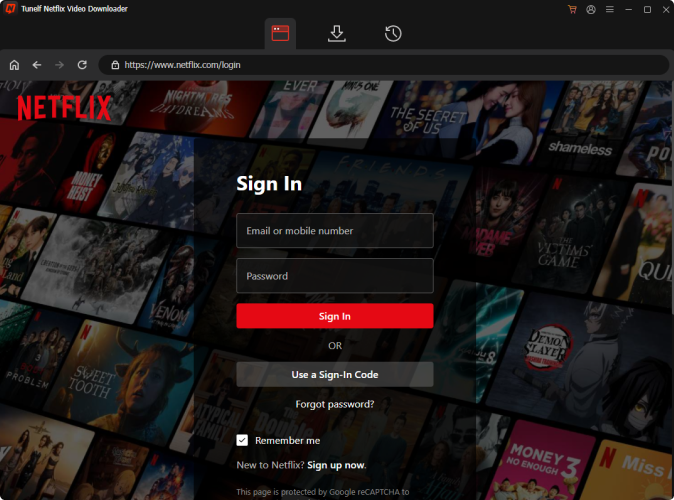
Thanks to the built-in Netflix website on the Tunelf software, you can access to Netflix videos without installing its app. Just download the Tunelf Netflix Video Downloader on your desktop. When the downloading process is finished, you can launch it and sign in to your Netflix account in the interface.
Step 2 Set output settings as you want
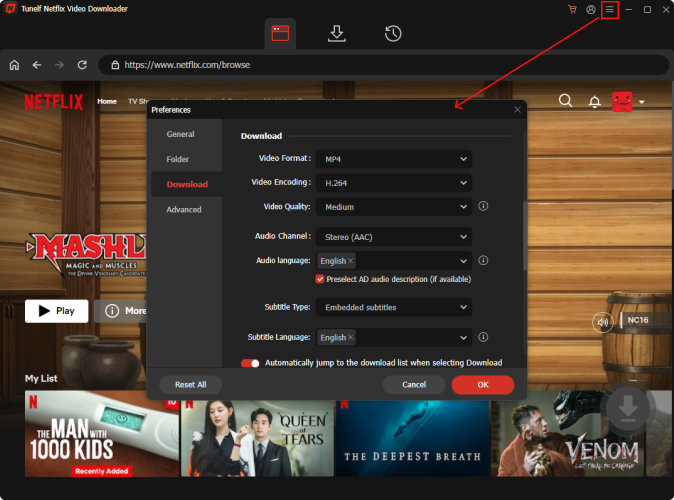
Click the menu icon at the top right corner and choose Preferences. Then, you can go to the settings page to reset the video settings according to your needs. The most important thing is to decide on the video format. MP4 is recommended since it is compatible with most devices, including your Apple Watch. You also have the ability to change other parameters, such as video quality, audio channel, languages, subtitle type, and so on. Once done, you need to click the OK button so that the changes can be saved successfully.
Step 3 Look for something you like to download
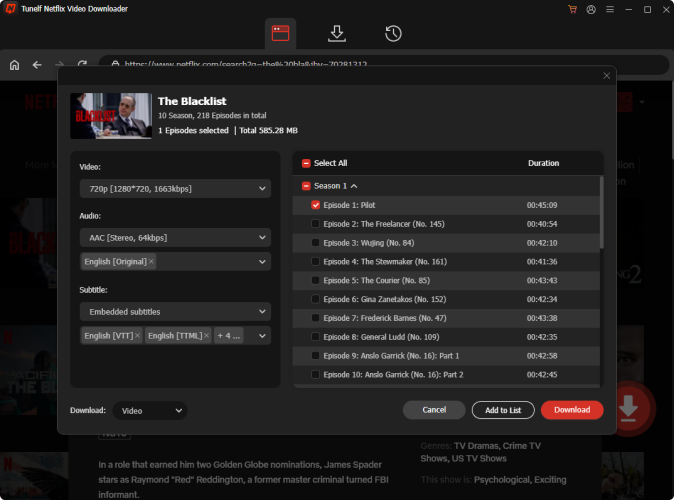
You are on the Netflix website right now. You can check its library and find the TV shows or movies you want to download and enjoy on your Apple Watch. Choose it and click the download icon. Wait for the Tunelf software to analyze it. After that, you can set the advanced settings in the new pop-up window.
Step 4 Download Netflix videos locally
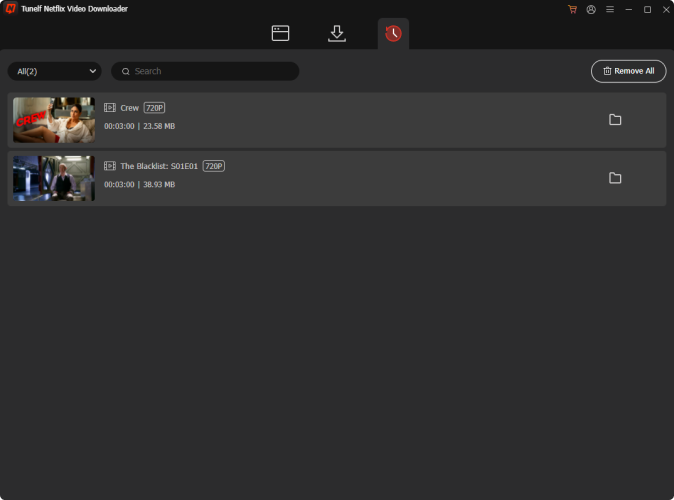
To officially start the downloading process, you need to click the Download button. Or, you can choose the Add to List option. Then, repeat the add process until you add all the videos you need. Switch to the Download List tab and you are able to download them in batches. When the downloading process is done, you can find the downloads in the History section. Just click the file icon next to each video, and you can find its exact location on your computer.
4.2 Sync the Video to Your Apple Watch
Congratulations! You now have the local video file of all Netflix shows and movies you like. It’s time to transfer them to your Apple Watch and watch them. Here are 2 feasible methods. You can choose the one that suits your personal situation.
Method 1. Via screen Mirror [with iPhone]
The easiest way to enjoy the Netflix downloads on your watch is to cast the video from your iPhone. This method is helpful when there is no Internet and you still want to watch videos on your watch offline.
1. Connect your iPhone to your computer via a compatible USB cable.
2. Launch iTunes on your computer and click the device icon. Then, switch to the Movies tab.
3. Find the Netflix downloaded videos and select them. Click Sync to transfer them to your iPhone.
4. Once done, play the downloaded videos on your iPhone. Next, open Control Center and choose the Screen Mirror icon.
5. Select your Apple Watch from the device list. Then, you can watch Netflix videos on your Apple Watch offline.
Method 2. Via YouTube [without iPhone]
If you want to watch the videos on your watch without your iPhone, the procedure is much more complicated. You will need to upload the videos to your YouTube channel first, then access YouTube on your watch via a third-party tool. Here are the steps.
1. Upload the downloaded Netflix videos to your YouTube channel.
2. Install the WatchTube app from the App Store on your iPhone.
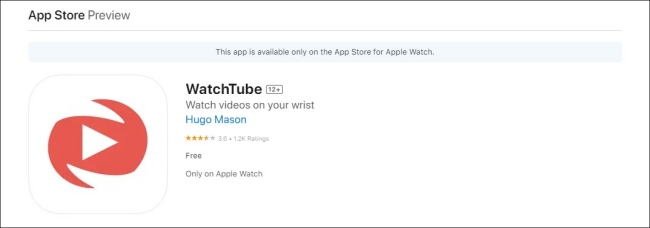
3. Once done, you can find the app appears on your Apple Watch. Tap it and it will lead you to YouTube.
4. Swipe left and tap Search. Enter the name of your YouTube channel and search for it.
5. Choose your channel from the search results. Then, scroll down and you can watch the Netflix downloads that you uploaded before.
Part 5. Conclusion
How to watch Netflix on Apple Watch? This is a problem that bothers many users for a long time. But after reading this post, you now know 3 feasible ways to achieve it. If you want to save your favorite Netflix videos and enjoy them on your Apple Watch offline, the Tunelf Netflix Video Downloader can do you a favor.
Get the product now:
Get the product now:


