


When it comes to a user-friendly platform for people to connect, collaborate, and socialize online, many people will choose Discord. As a popular platform that allows users to communicate with friends and family via text, voice, and video, Discord can be the best choice to stay close to your friends and communities. Except for communicating, Discord also allows you to share your favorite streaming content to create a good atmosphere during your conversations. Since Discord is such an outstanding tool, many users wonder if it is possible to watch Netflix TV shows or movies with friends together on it. If you want to know how to stream Netflix on Discord, you are in the right place. This post is a complete guide that covers the most effective methods to achieve your goal. Let’s begin reading this post and figure it out.
Part 1. Can You Stream Netflix on Discord?
The answer is yes. Although Discord doesn’t have a built-in streaming feature specifically for Netflix, you can still share Netflix content with other users on Discord via screen sharing or third-party bots.
However, you may encounter some technical issues such as a black screen when screen sharing. Don’t worry, in the following section, we will provide you with some effective solutions to resolve these problems. Additionally, we will introduce an ultimate method in detail that allows you to watch Netflix offline on Discord without restrictions.
Part 2. How to Screen Share Netflix on Discord
If you want a smooth experience of watching Netflix on Discord, you’d better download and install the Discord app on your computer or mobile phone in advance. What’s more, you will need an active Netflix subscription to stream its TV shows or movies. For users who want to adjust the stream quality and other settings, a Discord Nitro subscription is required. With all things done, you can try the following steps to stream Netflix content on the Discord app on your devices.
2.1 Screen Share Netflix Movies on Discord on PC
The web version of Discord is also valid. But the app version is more recommended due to the stability issue. To use the Discord app, your computer should be Windows 10 or higher. If you are using a Mac, its system should be MacOS 10.5 or Catalina and higher.
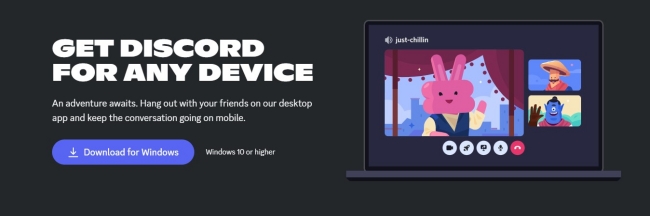
1. Visit the official website of Discord and install it on your desktop. Once finished, you can launch it and sign in to your account.
2. Head to netflix.com on your browser to choose your favorite TV series or movies, and keep them ready to play.
3. Go back to the Discord app and click the gear icon at the left bottom to enter the User Settings section. It is right next to your username.
4. Then, scroll down and click Registered Games at the left bar. Here you should choose the add it! Option next to Not seeing your games.
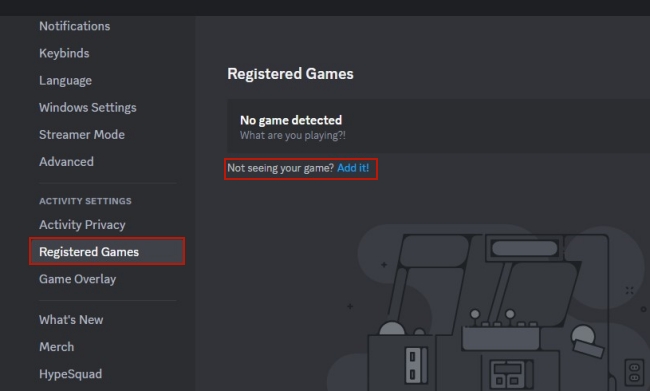
5. After that, you need to select Google Chrome from the drop-down list. Click Add Game to confirm your choice.
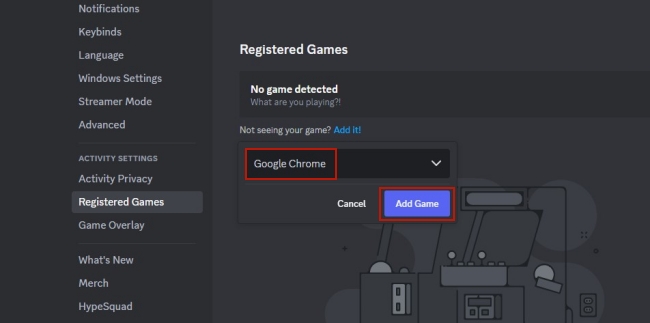
6. Next, you can go back to the interface of Discord and choose one server by double-clicking it. If you don’t have a server, you can simply click Add a Server to create one.
7. Now you can pay attention to the Chrome icon at the bottom. Click the share icon next to it to stream Chrome.
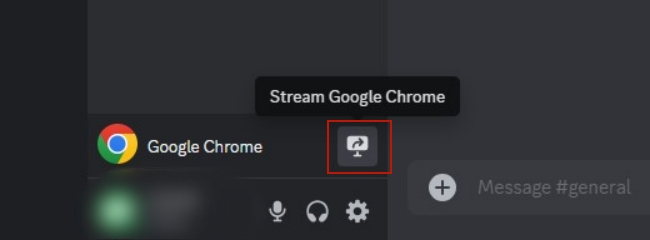
8. In the new pop-up window, you can choose the voice channel you want to stream in. Also, you can other settings like resolution and frame rate.
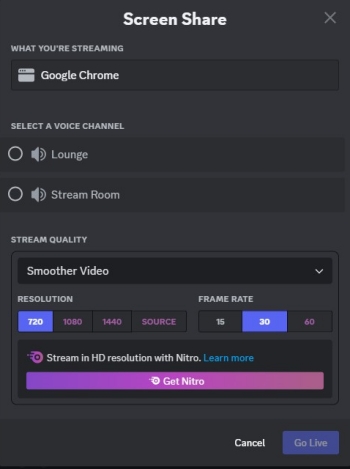
9. Click Go Live and you can share your screen successfully. Feel free to stream Netflix shows or movies and enjoy them with your friends.
2.2 Screen Share Netflix Movies on Discord on Mobile Phone
Streaming Netflix content on Discord with your mobile phone is also possible. You will prepare a pre-installed Netflix app and an active subscription. In addition, you’d better check your device system and make sure it is Android 10+ or iOS 13+. So, you can use Discord properly.
1. Launch the Netflix app and play your preferred video. Then pause it and leave the app open. Swipe up to return to your home screen.
2. Open Discord and choose one server to enter the voice channel where you want to stream Netflix content.
3. Tap the camera icon at the far left bottom first. Then tap the share icon next to it. You need to accept all required permissions so that you can use the screen share feature normally.
4. Once the feature is enabled, you will see your camera as the default app. You can navigate to Netflix and tap Play on your Discord stream to play the Netflix content instead.
Part 3. How to Stream Netflix on Discord via Netflix Discord Bots
While screen sharing is the most straightforward way to watch together, there is an easier way to integrate the Netflix experience directly into your server – using a valid Netflix Discord bot, which can help sync playback, share links, or enhance watch parties instead of actually rebroadcasting Netflix streams.
1. Open the Discord app on your device, and create your own server.
2. Then, search for a valid Netflix Discord bot and add it to your Discord server.
3. Once done, follow the bot’s official setup instructions to grant the necessary permissions.
4. After that, you can enter the corresponding bot command in the text channel to enable it, such as /heynetflix.
5. Next, search for the Netflix movie or show you want to share, and select the content to start streaming with other members in the server.
Part 4. Troubleshoot: Netflix on Discord Black Screen/No Audio
When streaming Netflix on Discord, the most common problem are the black screen issue and the no audio issue. These usually caused by a few known factors like DRM protection, hardware acceleration, or incorrect audio settings. Here are some helpful solutions to help you resolve this issue. You can try them one by one. If none of them work, you can consider using the Tunelf Netflix Video Downloader to watch Netflix content offline on Discord.
1. Disable hardware acceleration in Discord
Open the Discord app on your desktop and click the settings icon on the left side of the interface. Then, find and click Advanced. Click the toggle next to Hardware Acceleration to disable it.
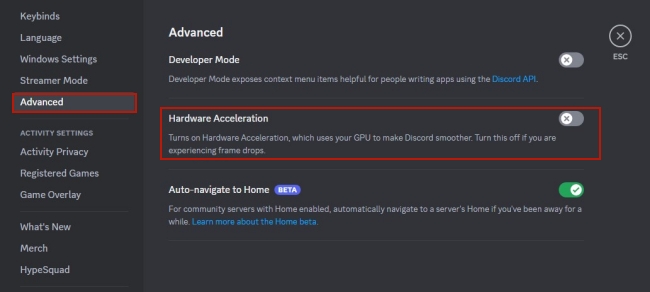
2. Turn off hardware acceleration in Browser
If you browse Netflix web player on your browser, you’d better close its hardware acceleration as well. Here we will take the Chrome browser as an example. Open Chrome and click the three dots icon at the top right corner, then choose Settings > System. In this section, make sure that the option Use hardware acceleration when available is off.
3. Run Discord as administrator
If you are using a Windows computer, running Discord as an administrator is also helpful. Just right-click the app icon on the desktop and choose Run as administrator.
4. Restart your browser and Discord
Sometimes the black screen issue is caused by lagging or other temporary bugs. At this time, you can try to restart both the browser where you stream Netflix and Discord. This step can help to make a total refreshment. After restarting, you can try to screen-share Netflix again to see if the problem is fixed.
Part 5. Ultimate Way: Watch Netflix on Discord Offline Without Limit
If you still can’t get Netflix to stream properly on Discord after trying all the troubleshooting methods above, or you just want to avoid all the annoying streaming issues, you can download Netflix videos as local video files first. Then, you can share the downloaded files directly when streaming on Discord. This way, you can completely avoid the DRM protection interference that usually causes black screen errors. What’s more, there won’t be any limit to your offline playback. The best tool you can use to achieve this goal is the Tunelf Netflix Video Downloader.
Tunelf Netflix Video Downloader is a professional and versatile video downloader designed for Netflix users. It aims to remove the DRM protection of Netflix movies and download them locally on your computer. With its help, you can easily get Netflix videos in MP4 or MKV format and import the downloaded files to other players or devices for watching offline.
Additionally, it can satisfy your personal demands by allowing you to set the video output settings. You can personalize video format, quality, codec, audio channels, language, subtitle type, and so on. It even allows you to download the audio or subtitle separately if you need to. With its help, you can download Netflix content locally for a lifelong time. Whenever you want to watch it with your friends, you can open Discord and have a good time.
Key Features of Tunelf Netflix Video Downloader
- Download TV shows, movies, anime, and various content on Netflix
- Convert Netflix to MP4 and MKV while keeping the original quality
- Support exporting Netflix content to videos, audio, and subtitles
- Allow to choose multilingual subtitles and soundtrack for Netflix
- Offer an abundant of features like automatic task completion
How to Download Netflix Videos Locally
Step 1 Install the Tunelf program and sign in to Netflix
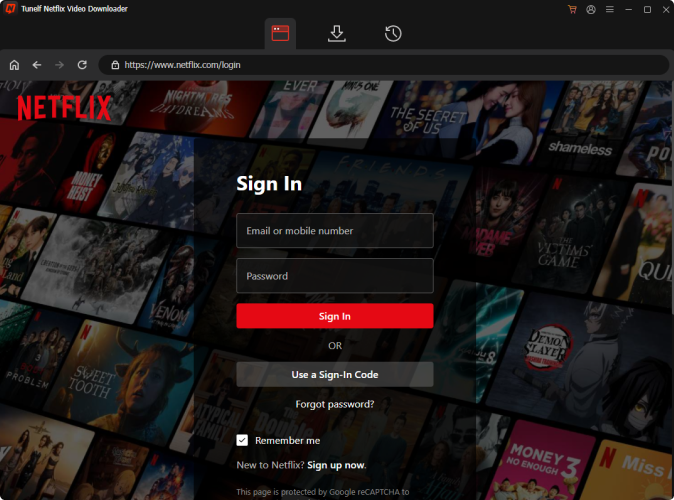
Tunelf Netflix Video Downloader has a Windows version and a Mac version. You can click the download button above to get the right version depending on the system of your computer. Once done, click Tunelf’s icon on your desktop to launch it. Then, you will see the official website of Netflix on its interface. Here you should enter the credentials to sign in to your Netflix account.
Step 2 Customize video output settings
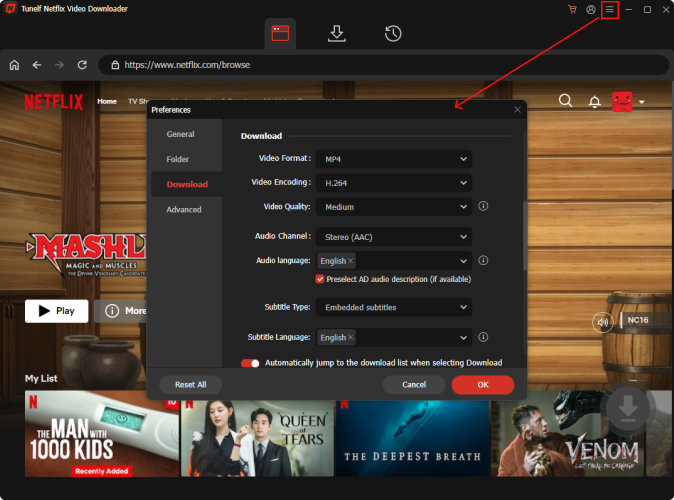
Click the menu icon at the top right corner, then choose Settings. It will pop up a new window to let you change all regular video settings. You can set the video download format, video codec, and video quality depending on your personal situation. Deciding on the audio tracks and subtitle type are of equal importance. To save your changes, you just need to click OK.
Step 3 Browse Netflix shows and movies for watching on Discord
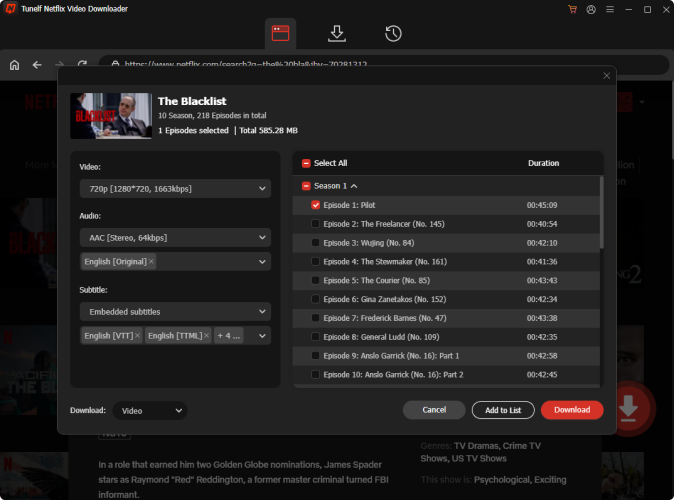
Now it’s time to browse the Netflix library and find something you like. Or, if you have a specific movie that you want to watch with your friends on Discord, you can locate it quickly by using the search box at the top. When you find it, with one simple click the Tunelf program will start to analyze it automatically. You should set the video quality, audio channel, subtitle, and language of the video you want to download. If you choose one TV show, you will need to choose the episode you want to download as well.
Step 4 Initiate the Netflix downloading process for Discord
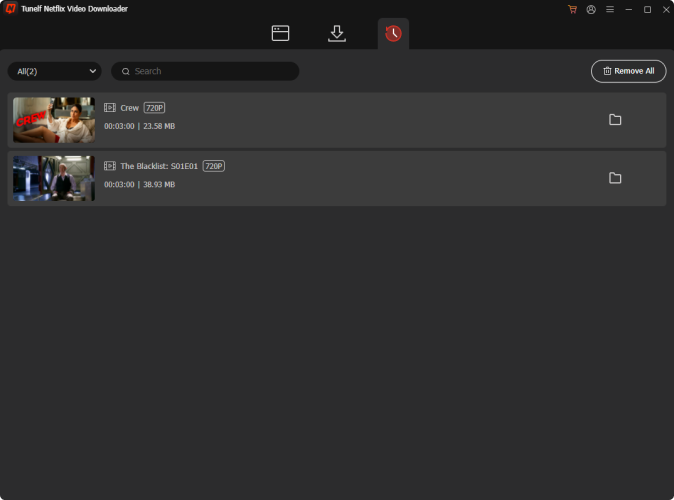
Whenever you are ready, click the Download button and you can get the video locally on your computer. The Tunelf program also allows you to download videos in batches. To do so, you should choose the Add to List option first. After adding all the videos, you can go to the Downloading section to download them at once. Once the downloading process is finished, you can find the downloaded Netflix videos in the Downloaded section of Tunelf. Click the file icon next to each video, you can find its location in your local folder with ease.
3.2 How to Watch Downloaded Netflix Videos on Discord
Congratulations! Now you already have the Netflix shows or movies you like on your computer. It can be saved in the local folder permanently. It’s time to enjoy these videos with your friends on Discord. Here are the steps you can take as a reference.
1. Open Discord on your desktop and join the server where you want to watch Netflix with your friends.
2. Initiate a voice or video call with your friends by clicking the voice or video icon at the top of the channel list.
3. Once connected, you can click on the screen share button located at the bottom of the call window. Don’t forget to check the Share audio option.
4. Now your friends can see and hear everything on your screen. You can play the downloaded Netflix videos on any player to enjoy them with your friends.
5. If you want to watch the downloads on your mobile phone, you can transfer them to your phone via a USB cable first. Then, try the steps in Part 2.2.
Conclusion
Although there is no official method to let you access Netflix content on Discord directly, you can still stream Netflix on Discord via the screen share. As a result, you can enjoy shows or movies with your friends easily. But sometimes you may encounter a black screen issue. Thus, we recommend you use the Tunelf Netflix Video Downloader to have a better viewing experience. As a potent downloader, it can help you remove the DRM protection and download Netflix shows and movies as normal video files. With this powerful tool, there is nothing easier than watching Netflix offline on Discord with your friends.
Get the product now:
Get the product now:


