


Developed by Google, Chromecast has become the most popular media player device around the world. With Chromecast, you can easily cast content from your smartphone, tablet, or computer to your TV screen and have a better viewing experience. Chromecast turns your TV into a smart TV by enabling you to access various online streaming services and content on it. For many Netflix users, casting Netflix shows or movies on the TV is also a good choice. How to watch Netflix on Apple Watch? This question bothers Netflix users.
If you are also seeking solutions, you are in the right place. This post will teach you how to use Netflix on your Chromecast online and offline. By listing the complete guidance and detailed steps, this post can clear your mind of all worries and let you get the best Netflix watching experience with Chromecast.
Part 1. How to Cast Netflix to Chromecast
Chromecast allows you to control your Netflix watching from your mobile device or computer. If you possess a Google TV with Chromecast, you can even utilize Google Assistant to play Netflix shows and movies via voice command.
1.1 Set up Chromecast
Before casting Netflix to Chromecast, you first need to get your Chromecast device properly set up.
1. Plug in your Chromecast and connect it to your TV.
2. Install the Google Home app on your mobile phone or tablet.
3. Make sure that your mobile phone/tablet is connected to the same WiFi network that you used to set up your Chromecast device.
4. Go to the Google Home app on your mobile device, and set your Chromecast as a new device.
1.2 Cast Netflix Content to Chromecast
Once the settings are finished, you can cast Netflix shows or movies to Chromecast. Here you should notice that casting to Chromecast is not available on ad-supported Netflix plans. You need to change to an ad-free plan to reach this feature.
1. Launch the Netflix app on your mobile device and sign in to your account.
2. Select the Cast icon from the upper or lower right corner of the screen.
3. Choose your Chromecast from all available devices to launch Netflix on your TV.
4. Now you can play the TV shows or movies you like, and they will show on your TV.
Part 2. How to Use Netflix on Chromecast Offline
The official method is easy and convenient to help you get Netflix on Chromecast. However, you may face many bugs and errors during the use of this feature. If you want to get rid of all the obstructions, the best method is to download Netflix shows or movies and watch them offline with Chromecast. To reach it, you will need a powerful third-party tool that can help you remove the DRM protection of Netflix content can save it as a normal video file. Tunelf Netflix Video Downloader is exactly what you are looking for.
Tunelf Netflix Video Downloader is designed as a functional video downloader and converter for Netflix users. It can download almost all Netflix shows and movies and save them in MP4 or MKV format without limitations. Thanks to its advanced decryption technology, you have the ability to crack Netflix DRM protection and keep the downloaded videos permanently. If you want, you can even transfer the video files to other compatible players and devices to play without the Internet. In addition, Tunelf software can also ensure lossless video quality and retain original metadata, like multi-lingual audio tracks and subtitles. You can customize various video settings depending on your preferences. Set the video quality to 1080p and you can get the best viewing experience.
Key Features of Tunelf Netflix Video Downloader
- Download TV shows, movies, anime, and various content on Netflix
- Convert Netflix to MP4 and MKV while keeping the original quality
- Support exporting Netflix content to videos, audio, and subtitles
- Allow to choose multilingual subtitles and soundtrack for Netflix
- Offer an abundant of features like automatic task completion
Download Netflix Shows/Movies for Offline Watching
To satisfy the demands of different users, Tunelf Netflix Video Downloader released the Windows version and the Mac version. You can click the Download button above to get the right version that is compatible with your computer system.
Step 1 Launch Tunelf software and sign in
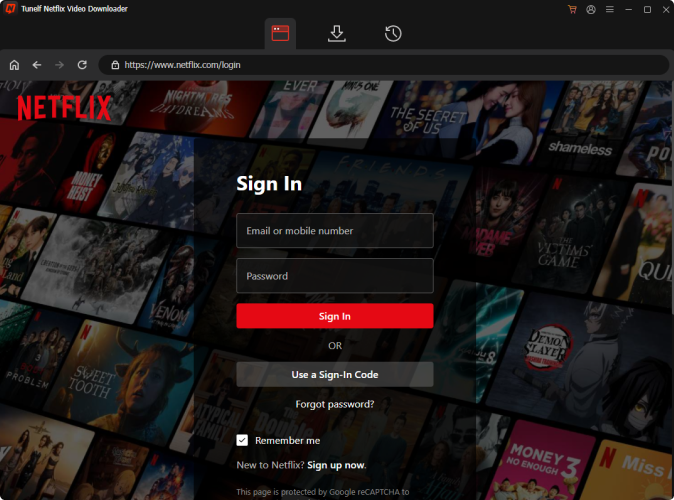
When the installation is finished, you can click this software to launch it on your computer. Then, enter your email address and password in its interface to log in to your Netflix account.
Step 2 Reset output settings
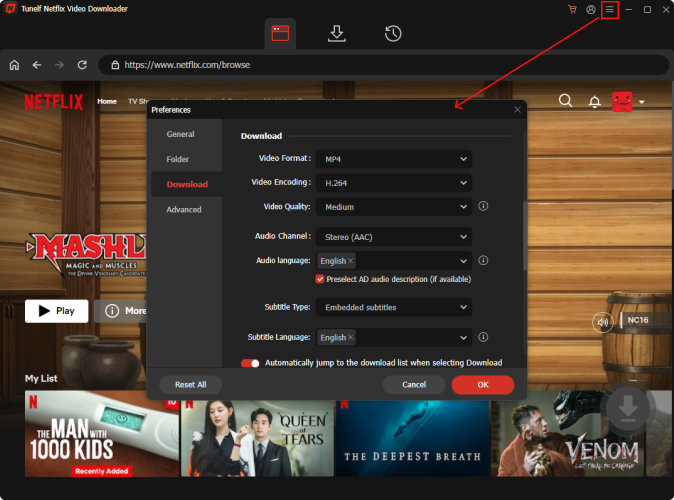
Click the menu icon at the top right corner, then choose Preferences. After that, there will pop a new window, where you can reset various output settings according to your preferences. You should choose one output format from MP4 and MKV, then set the video codec and quality. For a better experience, we recommend you set the audio channel as 5.1 surround sound. Don’t forget to set the language of audio and subtitles. Lastly, click OK and you can finish the settings.
Step 3 Search for Netflix titles to download
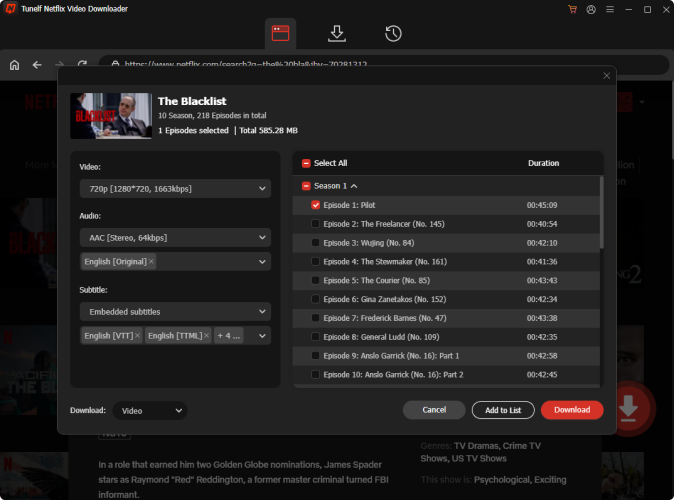
It’s high time to browse the Netflix library and find the shows or movies you want to download. Also, you can enter the names of the shows you like into the top search bar so that you can locate them quickly. Click the show or movie you want to download, and wait for the Tunelf software to analyze it. Once done, choose the Download icon and you can set the video quality. 1080p is the most recommended option. If you click a TV show, you need to choose the episode for downloading as well.
Step 4 Download Netflix content for offline watching with Chromecast
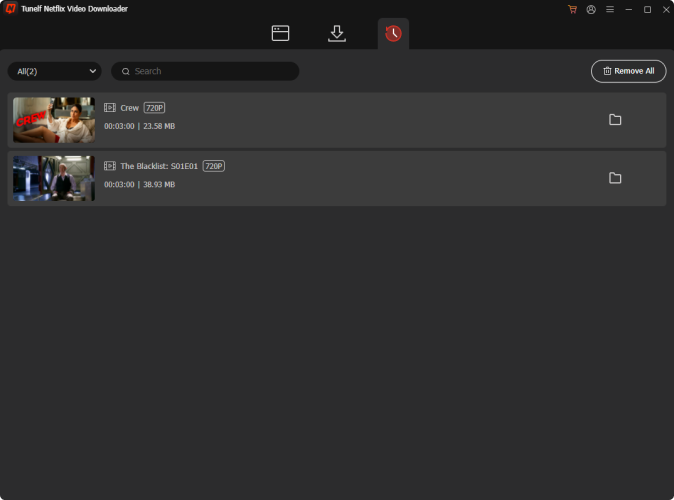
The last step is to click the Download button. If you want to download videos in batches, you can click Add to List first and then download them at once in the Downloading tab. When it is finished, go to the Downloaded tab and click the file icon next to each video. Then you can find their location on your computer.
Cast Downloaded Netflix Videos to Chromecast
With the downloaded Netflix video files, you can now cast them to your Chromecast and watch them offline with ease. Here are the detailed steps for your reference.
Cast downloaded Netflix videos from your phone or tablet
1. Transfer downloaded videos to your phone or tablet via a USB cable.
2. Connect your phone or tablet and your Chromecast to the same network.
3. Open the Google Play Movies & TV or the Google TV app on your phone or tablet. If you don’t have one, you can install the app from Google Play Store.
4. Select the downloaded Netflix video and tap Cast.
5. After that, you should select your Chromecast from the list and tap Play to enjoy your Netflix video offline.
Cast downloaded Netflix videos from your computer
1. Launch the Chrome app on your desktop and open the Netflix file you want to cast.
2. Drag and drop the video file into a Chrome tab.
3. Click More > Cast at the top right corner.
4. Next, choose your Chromecast from all the available devices to play this Netflix video.
Part 3. How to Fix Netflix Chromecast Issues
It is possible that you encounter some problems while using Netflix with Chromecast. Sometimes, temporary bugs and glitches will prevent you from using Netflix to Chromecast. If you are facing issues when using Netflix on Chromecast, try the following solutions.
Issue 1. Missing Cast Icon
One of the most common issues of getting Netflix on Chromecast is the missing cast icon. It is likely due to one of two things: a network mismatch or an internal glitch. The solutions below may help you fix this issue.
Fix 1. Check the network connection
First of all, you should check and ensure your phone/tablet and your Chromecast are on the exact same Wi-Fi network. Plus, disconnect any VPN connections on your mobile device if you are using one.
Fix 2. Reboot your device
Turn off your mobile device, like your phone or tablet, and then restart it.
Fix 3. Update the Google Home app
Launch the Google Home app on your mobile phone. Then, tap the profile icon and choose Update all under Updates available. When the updating process is finished, you can open Netflix and try it again.
Issue 2. Netflix Not Working on Chromecast
If you can see the Cast icon but Netflix won’t play, or keeps buffering, the issue is usually related to playback or connectivity. Here are useful solutions.
Fix 1. Restart your Chromecast device
You should try to restart your Chromecast device by unplugging it for 10-15 seconds and plugging it back in. After the device restarts completely, you can launch Netflix again to see if the problem is solved.
Fix 2. Reconnect your Chromecast in the Google Home app
Open the Google Home app on your mobile device, find your connected Chromecast device, then tap to remove it from your linked devices. After that, reconnect your Chromecast to the same Wi-Fi network your mobile device is on, and try casting again.
Fix 3. Clear the cache of your Netflix app
Cached data can cause playback failures when using the Netflix mobile app to cast videos. Thus, it’s always a good idea to clear the Netflix cache. On Android devices, you can go to Settings > Apps > Netflix > Storage > Clear cache. On iOS devices, you need to select Settings > General > iPhone Storage. Then, tap the Netflix app and choose Offload App.
Part 4. Comparison: Casting vs. Tunelf
| Casting | Tunelf Netflix Video Downloader | |
| Internet Dependency | Requires active, stable Wi-Fi at all times | Not required after download |
| Playback Stability | Depends on network quality | Stable (local playback) |
| Video Quality | Can vary due to network speed | Preserves original quality (up to 1080p/4K) |
| Device Compatibility | Limited to supported devices | Playable on any device |
| Offline Playback | ❌ | ✅ |
How do I use Chromecast with Netflix? I believe you won’t be bothered by this question after reading this post. You can get 2 effective methods to watch Netflix content on Chromecast. If you have a Netflix subscription, you can directly cast Netflix to Chromecast. But if you want a more stable experience, your best choice is to use the Tunelf Netflix Video Downloader to download Netflix shows and movies, then watch downloaded videos with Chromecast offline.
Get the product now:
Get the product now:


